Beginner’s guide to using MT5, 5 things you might get stuck in when you first open it

Rate this note
GoldStudyNet·MT5 first step
Beginner’s guide to using MT5, 5 things you might get stuck in when you first open it
The first screen where an English menu and an unfamiliar window appear simultaneously. Turn on the translator once and open them one by one with the mindset of getting started.
Hello everyone. These days, when an overseas site or app screen appears in English, have you ever pointed your camera at a translation app? I, too, was confused at first when an unfamiliar language came up, but after turning on the translator, I felt relieved.

That's exactly the moment you open MT5 for the first time. Multiple windows open at once, English and Korean are mixed, and the numbers move constantly. Today Five places that many people get stuck in when they first openI will solve them in order. All shortcuts are confirmed in the MetaTrader 5 official help as of October 2, 2026. Korean menu names may vary depending on the version and broker, so please read and compare them with my screen.
01Before getting started, start with a demo account.
Before we get started, let me tell you one thing. The first practice demo accountI recommend that you do this. Since there is no actual money at stake, you don’t have to worry about opening and closing the order window several times. Check the company information to see if they offer a demo account and what the terms are. This article is not an invitation to sign up, but rather an article for understanding the screen, so I will not provide a separate sign-up link.
And one more thing, don't try to know all the windows and features from the beginning. Knowing just five places is enough.
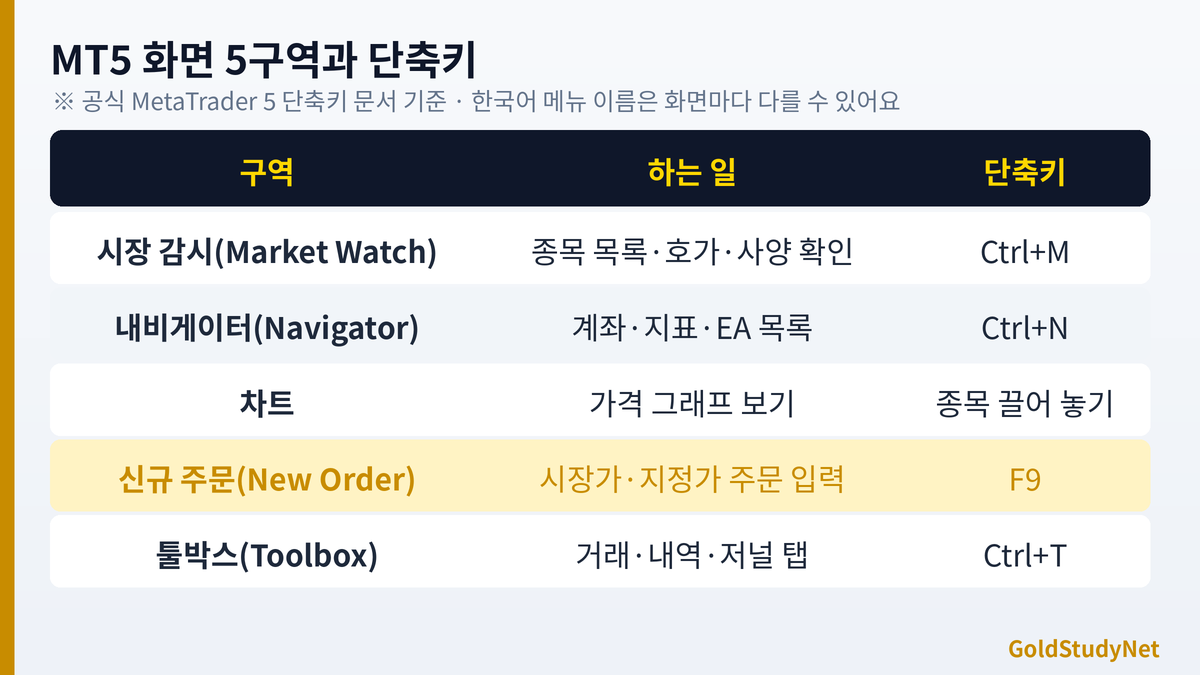
02Where it gets stuck 1. I can’t see the item.
This is the most common question. This is a case where the stock I am looking for is not found in the Market Watch window. The market monitoring window is Ctrl+MYou can open and close it (based on the official shortcut key document). Right-click inside the window Symbols There is a menu, where you can open or hide the list of available stocks.
The official help states that you can filter by entering the first letter at the top of the market monitoring window, and that you cannot hide stocks with positions, orders, or open charts. So, when it seems like a stock has disappeared, first Is the item hidden in the Symbols window? Check it out. The names of the stocks are different depending on the company, so XM often uses them without a slash, such as GOLD for gold and EURUSD for foreign exchange (need to check in My Account). You may refer to the separate article for the names of representative stocks and how to find them.
032. How do I open the chart?
If you drag an item from the market watch window with the mouse and drop it on an empty chart area, the chart will open. The official help says that there is a way to open the chart by dragging and dropping, and that if you hold down the Ctrl key and release it, it will open as a separate tab.
If you want to change the appearance of the chart after it is opened, shortcut keys are convenient.
- Alt+1: Bar Chart
- Alt+2: candlestick chart
- Alt+3: Line chart
- F8: Chart Settings Window
- Ctrl+G: Show/hide grid
I recommend not raising too many indicators from the beginning. There is a lot to learn just by looking at the price.
043. What do I enter in the order window?
The order is F9When you press , the New Order window opens. Even if you double-click an item in the market monitoring window, the same window opens. The input items are as follows.
1Check symbol
First, check whether the item in the currently open window is the item you want to trade.
2Enter transaction volume
This is in lot units. Start with the smallest units at first. Check the minimum and maximum trading volume and interval in the item specifications.
3Stop Loss/Take Profit
Enter the price. Please check the stop level in the specification as it may be rejected if it is too close to the current price.
4Select order type
Check whether it is the market price (Market Execution) or the limit price.
5Buy/Sell Button
The transaction is concluded when you press the Buy by Market or Sell by Market button. Check the numbers one more time before pressing it.
This article follows the order flow from start to finish with a single EUR/USD transaction. How to trade FXI have organized it in . There, you can see the click order and even check the numbers.
054. Where can I see my position?
The Toolbox window at the bottom of the screen is the center of position confirmation. Ctrl+TYou can open and close it with . Among the many tabs, there are three to take note of first.
- Trade tab: You can see the currently open positions, valuation gains and losses, and swaps. Ctrl+F9Press to open this tab and you can manage your positions using the keyboard.
- History tab: There are records of closed transactions and deposits and withdrawals. You can change the period and view it, and it is also used to organize transaction records.
- Journal tab: Records of login and order errors are kept, which is helpful when checking why an order was rejected.
You can close a position by clicking the close (X) mark on the relevant line in the trading tab or using the right-click menu. The screen configuration may vary depending on the version. When first practicing, practice opening and closing a demo account a few times to get the hang of it.
● I get embarrassed when the screen looks different from mine. Please feel free to contact us, and we will check the screens together one by one. Focus on trading.
065. Where can I find spreads and swaps?
Almost all information is contained in the stock specifications. When you right-click on a stock in the market monitoring window, Specification There is a menu. According to the official help, the specifications window contains the following items:
- Spread
- Contract size
- Stops level
- Minimum/Maximal volume and Volume step
- Swap long/short
- Transaction Time (Sessions)
- Margin currency/Calculation
There is also an explanation in the official help that the margin display is based on the price at the time the specification window is opened and is not updated in real time. These numbers are all the ingredients for calculations. For example, in a 0.01 lot gold trade, you can directly check in the specifications window whether the contract size is 100 ounces, what the margin is, and how many dollars the spread is. An article that specifically calculates gold trading XM Gold 0.01 lotPlease see how to use the numbers in the specifications window.
Trading hours and times when spreads widen FX trading hours Korean time summaryIt is organized in a table, so it will be easier to understand if you look at it together with Sessions in the specification window.
07The first place to look when you can't order
When I first press the order button, there are many cases where nothing happens or an error message appears. Don't panic, check in the order below.
- Check if the market is open. Orders will be rejected on weekends, during closed hours, or during trading hours for each item (sessions in the specifications).
- Check if trading volume is within acceptable range. If it is less than the minimum transaction volume or does not meet the transaction volume interval (Volume step), it will be rejected.
- Make sure you have sufficient margin. You will see your free margin at the bottom of the trading tab.
- Check the stop loss and take profit distance. If it is too close to the current price, it may be rejected due to the stop level.
- Make sure the automatic trading (algo trading) setting is not turned off. It is not necessary for manual ordering, but when using EA, you can change whether to allow it with Ctrl+E.
- Read the Journal tab. Reasons for rejection are often kept in short sentences.
One of these six is almost always the cause. Don't be scared if the message appears in English, copy it into a translator to check the meaning, and then look for the corresponding item in the specifications window. Once you gain experience solving problems like this, you will be able to respond much more calmly next time.
08Tips to organize your screen in your own style
If the main screen looks complicated, you can close unnecessary windows and leave only the ones you need. You can open and close the market watch with Ctrl+M, the navigator with Ctrl+N, and the toolbox with Ctrl+T. Once you're done organizing, save the current arrangement as a profile so you can open it the same way next time. (The profile menu location may vary depending on the version.)
The same goes for the number of stocks. If you list dozens of stocks from the beginning, the numbers will keep moving, which will tire your eyes and blur your judgment. I recommend leaving only one or two stocks at the beginning. You can study for a long time if your eyes are comfortable.
09One practice routine recommended
For the first week, repeat the steps below on a demo account.
☐ Open Market Watch with Ctrl+M, find one stock and drag it to the chart.
☐ I changed the chart shape to candlestick and opened the settings window with F8.
☐ I opened the order window with F9, bought with the minimum trading volume, and checked the results in the trading tab.
☐ I closed the same position and checked the profit and loss in the history tab.
☐ Spreads, swaps, contract sizes, and minimum trading volumes were found directly from the stock specifications.
☐ I opened the Journal tab to see where my order-related records were kept.
10Attitude to use like a translator
I first mentioned the translation app in today's story. A translator does not translate every sentence perfectly, but it is a great help in understanding the larger meaning. The same goes for MT5. Even if the English terminology is unfamiliar, most screens can be read if you know the main meaning: Volume is trading volume, Stop Loss is Stop Loss, Take Profit is Profit, and Spread is the difference between bid and ask prices.
And if you come across a term you don't know, write it down on the spot. I think that writing down words you don't know in a notebook and then erasing them one by one is the most lasting. After a week, you will have more lines to delete.
11Please remember this
- The shortcut keys are based on the MT5 official documentation, and some may differ depending on the version distributed by the company.
- Korean screens may say things like “Market Watch” and “Orders.” It is convenient to remember it along with its English name.
- The spread and execution situation may be different between the demo account and the real account, so it is difficult to expect the practice results to be the same.
- This article explains the function and is not a recommendation for investment.
12In conclusion
Let me summarize. There are five places where you first get stuck in MT5: finding an item (Ctrl+M), opening the chart, entering the order window (F9), trading/history tab at the bottom (Ctrl+T), and checking the item specifications. If you repeat this sequence in the demo account, you will get used to it within a week.
If you open an unfamiliar screen a few times, it quickly becomes familiar. Don't rush and open windows one at a time. Thank you for reading until the end.
● If anything is blocked on the screen, please feel free to contact us at any time. We'll think about it together. Focus on trading.
If this was useful, please leave a rating
I start every morning with the main news and ask “why?” before “how much?”. I only list brokers where I opened an account and traded myself first. If a condition changed or something is wrong, tell me and I’ll fix it.
★ GoldStudy partner link Sign up through this link to get GoldStudy support


